
TL;DR
Smart home security cameras let you check your home remotely, receive motion alerts, and review footage, but they do not prevent break-ins or replace a monitored alarm. Compare placement, Wi-Fi, power, detection, storage, privacy controls, and subscription terms alongside resolution. A well-placed camera with secure settings and a recording plan that suits your needs can be more useful than a high-resolution model pointed at the wrong spot.
A camera labeled “4K” can still miss the detail you need if it points at the wrong patch of driveway. Placement, lighting, and recording reliability often matter just as much as the number on the box.

Get decor and gifts delivered free with Prime
- Fast, free delivery on millions of items
- Prime Video, Amazon Music and more included
- Member-only deals all year
Smart home security cameras let you check on your home remotely, get alerts, and review recorded footage. They range from simple indoor cameras to outdoor models with weather protection, floodlights, sirens, or pan-and-tilt movement. Some work alone; others connect with doorbells, sensors, smart locks, and voice assistants.
This guide gives you the key facts for choosing a camera, setting it up, and deciding how to store footage. You’ll also see where cameras help, where they fall short, and how to protect the private recordings they collect. Think of a camera as another set of eyes: useful when it can see clearly and stay connected, but no substitute for a complete safety plan.
Choose the camera for the view you need; resolution alone cannot make distant, backlit, or poorly framed footage useful.
Test Wi-Fi, lighting, and the image at the mounting location before making the installation permanent.
Compare cloud and local storage, retention, downloads, outage behavior, and subscription-dependent features.
Tune activity zones and alert categories, then test both nighttime performance and missed events.
Use a unique password, multifactor authentication, software updates, individual shared access, and privacy masks where available.
Know What a Smart Camera Can—and Can’t—Do
A smart home security camera connects to an app or home network so you can view a live feed, receive alerts, and often review saved clips. It can show you what happened at a doorway or in a room, but recording is not prevention, and a camera does not automatically summon help. That distinction matters when you decide what the camera is for: documenting an event and checking on a delivery are different jobs from deterring an intruder or getting emergency assistance.
Imagine you’re at work when a delivery arrives. A camera may notify you, show the parcel on the step, and let you speak through two-way audio. That can help you ask a neighbor to bring it inside. If someone takes it, the clip may document the event; the camera alone cannot stop them. The useful outcome depends on the whole chain working: motion must be detected, the alert must reach you, the clip must be saved, and you must be able to act on it.
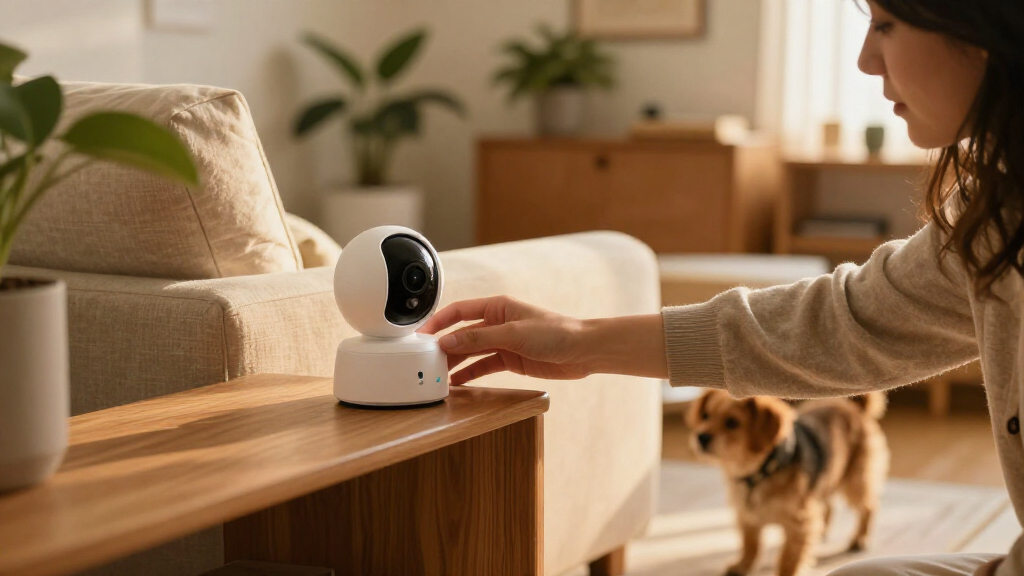
Models vary widely. Simple indoor cameras usually focus on a room and may offer pan-and-tilt movement. Outdoor cameras may add weather protection, a spotlight, a siren, or wider views. Some join a system with door sensors or smart locks, though compatibility depends on the specific model and platform. Extra features can make a system more useful, but they also add settings, power needs, and possible subscription costs. Check whether each feature solves a problem you actually have.
Use cameras as one layer of home security. Good lighting, sturdy locks, and a monitored alarm may address needs video alone cannot. Motion alerts can also arrive late or fail, so don’t rely on them as a guaranteed emergency warning. A camera is most useful when its role is clear and another measure covers the risks it cannot handle.
Popular right now

TCL 85-Inch QM6K QLED Mini LED 4K HDR Smart Google TV, 144Hz

Bose QuietComfort Wireless Noise-Cancelling Headphones, Moonlight Grey

Ninja Creami Scoop & Swirl Ice Cream Maker – Bone & Champagne (Amazon Exclusive)
As an affiliate, we earn on qualifying purchases.
Choose a Camera by the View You Need
Smart home security cameras are easiest to compare when you start with the job you want each one to do: watch a room, cover an entrance, or monitor a driveway. Resolution is only one part of usable footage; field of view, low-light performance, image processing, distance, and camera angle all shape what you can actually make out. A camera’s pixels are spread across its frame, so a wider view can show more area while leaving fewer pixels on any one person or object. The right balance depends on whether you need broad awareness or recognizable detail at a particular spot.
For example, a wide view can show your front gate and path in one frame, while a narrower view may show more detail at the door. A camera aimed at a sunny window might turn a person in the room into a dark silhouette. Move it a few feet or change its angle, and the image may become much clearer. This is why a sample image from a product page is a weak basis for comparison: it may not reflect your distance, lighting, or mounting angle.
| Camera type | Often suits | Check before buying |
|---|---|---|
| Indoor fixed | One room, entry area, or pet space | View angle, privacy controls, and power |
| Indoor pan-and-tilt | A room where you want to follow activity | Movement controls and whether recording follows movement |
| Outdoor battery | A location without nearby power | Charging access, weather rating, and battery-life conditions |
| Outdoor wired | A fixed view where power is available | Installation needs, recording options, and Wi-Fi coverage |
| Floodlight camera | An exterior area that needs light as well as video | Light controls, mounting location, and any electrical work |
Higher resolution can use more bandwidth and storage, and it won’t fix a poor view. More video data may also mean slower uploads or shorter retention under a storage plan with fixed capacity. Before choosing, ask what detail you need to see, how far away it will be, and whether the camera can capture it in the light conditions you have. If possible, test a camera or compare footage recorded from a similar distance and angle.
Use This Setup Checklist Before Mounting a Camera
To set up a camera well, choose a useful view, confirm a reliable connection and power source, configure alerts and storage, then check the image from the app. Test the real view before settling on a mount. A quick walk-through can reveal a glare spot, dead Wi-Fi zone, or tree branch that blocks the frame. These checks matter because small setup problems can undermine the entire chain from detecting an event to keeping a viewable clip.
- Choose the purpose. Decide what you need to see, such as your porch, driveway, or a shared entry. A camera meant to catch deliveries may need a lower angle than one watching a broad yard. Defining the purpose helps you choose the frame and avoid recording areas that add little value.
- Check Wi-Fi and power. Test the signal where you plan to mount it. Wired models need a suitable power source; battery models are easier to place, but busy motion areas and frequent live viewing can mean more charging. A weak connection can delay alerts or uploads, while an inconvenient power source can turn routine upkeep into a reason the camera goes offline.
- Set the frame and privacy zones. Point the camera at the useful area, then mask windows or neighboring spaces where the app allows. Check the view at night as well as in daylight. Night lighting can change contrast and reveal reflections or silhouettes that are not obvious in daytime.
- Pick alerts and storage. Set motion or person notifications to match your needs. Confirm whether clips save locally or in the cloud, how long they remain, and which features require payment. Alert settings affect what reaches your phone; storage settings determine whether there is evidence to review later.
- Test a real event. Walk through the detection area and confirm you receive an alert and can find the clip. Adjust the angle or sensitivity if passing traffic keeps triggering it. This test checks the complete system, including detection, notification, and playback, rather than assuming each feature works because it appears in the app.
For instance, a camera aimed directly at a busy sidewalk may send alerts all afternoon. Narrowing its activity zone to the gate can make the phone useful again. But if the zone is too narrow, someone approaching from the side may go unnoticed. Make adjustments gradually and test the paths people actually use. If installation involves electrical work, new cabling, or work near mains power, use a licensed professional and follow relevant power-off and PPE safety steps.
Compare Cloud and Local Storage Before You Pay
Camera footage can be stored in a provider’s cloud, on a memory card, in a home hub, or on a network recorder; some systems offer more than one option. Cloud storage supports off-site access, while local storage can reduce reliance on a paid plan. The distinction matters most when something goes wrong: where the clip lives determines whether it is still available after a camera is damaged, the internet fails, or an account plan changes. Neither choice fits every household, so check the terms and outage behavior before deciding.
Say someone damages a camera while you’re away. A clip already uploaded to the cloud may remain accessible from your phone, because it is stored away from the device. With local-only recording, footage might stay in your home and avoid a recurring storage fee, but it could be lost if the device or storage is taken or damaged. What happens during an internet outage varies by model: some cameras keep recording locally, while others lose key features. A local recording setup can therefore be a useful fallback, but only if the camera continues recording and you can retrieve the footage afterward. If it stores only on the camera itself, removing or damaging that camera may take the recording with it.
Subscriptions may cover cloud clip history, longer retention, advanced detection, or other features. A camera can advertise person or package detection yet reserve some functions for a paid plan. That changes the true cost of ownership: compare the features you will actually use over the time you expect to keep the camera, not just its purchase price. A low upfront price can become less attractive if the functions you rely on require a monthly fee. Read the current plan details and test whether you can download clips before purchasing, since the ability to retrieve a clip matters if you need to share or keep it beyond the provider’s retention window.
- Cloud: Convenient when you want access away from home; check fees, retention, downloads, and account security. Off-site copies may survive damage at home, but they rely on an internet connection for upload and on the provider’s service and account access.
- Local: May avoid recurring storage costs; check capacity, overwrite rules, and what happens if the camera or network fails. Storage that overwrites the oldest clips can erase an event before you notice it, so capacity and review habits affect how useful it is.
- Continuous recording: Gives a fuller timeline but uses more storage than short motion-triggered clips. It can help reveal what happened before or between alerts, while motion clips conserve space but may miss activity if detection fails or starts late.
Storage needs depend on resolution, recording frequency, clip length, and retention. A quiet hallway recording short events needs less space than a camera capturing continuous video of a busy street-facing entrance. Longer retention can help when you discover an event days later, but it also means more footage to secure and potentially higher storage costs. Choose a retention period that gives you enough time to notice and save important clips without keeping routine recordings indefinitely. Consider how quickly you usually review alerts: a short history may work if you check daily, while travel or irregular schedules can make a longer window more practical.
Cut Noisy Alerts Without Missing Useful Activity
Smart home security cameras can use motion detection or labels such as person, vehicle, animal, and package to decide which events deserve an alert. These tools can reduce irrelevant notifications, but accuracy depends on placement, light, and software. Treat detection labels as helpful filters, not as proof that the camera will recognize every event correctly. A label can change what you notice, but the underlying video and the camera’s detection limits still determine what is recorded.
Picture a camera covering the front path and part of the road. Wind moves a shrub, a car passes, and your phone buzzes six times before lunch. An activity zone that excludes the road, plus person alerts instead of all-motion alerts, may quiet the app. If a delivery driver approaches from an unusual angle, though, the same setting could miss an event you care about. The tradeoff is between fewer interruptions and a greater chance of filtering out something relevant; choose based on the camera’s purpose, then test the boundary rather than assuming the filter is precise.
Begin with a week of ordinary use. Note whether alerts arrive for people at the gate, cars outside the property, pets, or shadows. Then adjust one setting at a time and walk through the frame to see what the camera catches. Changing one setting at a time helps you tell whether fewer alerts came from a useful improvement or from suppressing too much activity. AI features may run on the device or in the cloud, and access to some categories can depend on a subscription. Cloud-based processing may also depend on the internet, which can affect how quickly labels or alerts appear.
- Trim the activity zone to the path, doorway, or driveway you want to monitor.
- Choose alert categories that match your reason for installing the camera.
- Review misses as well as false alerts before lowering sensitivity. False alerts create fatigue; missed alerts can leave gaps in the record.
- Test at night, when headlights, infrared lighting, and shadows can change detection.
A quieter alert stream is useful only if it still catches the events you care about. If you stop noticing notifications because there are too many, even accurate alerts lose practical value. Keep a doorbell, lock, or alarm as a separate layer if you need another way to notice activity.
Protect Your Privacy and the Footage You Keep
A smart camera records what falls inside its frame, so your security plan should include both account protection and careful placement. Strong, unique passwords, multifactor authentication, current software, and reviewed sharing settings can reduce account risk. Check the manufacturer’s information about encryption, retention, and who can access stored footage. These settings matter because a camera feed can reveal routines, household members, and when a home is empty—not just isolated security events.
Start with the scene, not just the app. A camera above a front door may capture the step clearly, while a small privacy mask blocks a neighbor’s window. That adjustment can preserve the view you need without collecting as much of someone else’s private space. Laws and expectations differ by location, and audio recording or capturing areas beyond your property can raise additional privacy concerns. A useful frame is therefore a compromise: it should show enough to explain an event without collecting more of the surrounding area than the purpose requires.
Think through who can view the feed. If a family member needs access, use an individual shared account where possible instead of giving them your password. When a house sitter no longer needs access, remove it. A guest who sees a camera in a living area should know it is there and understand when it records. Individual accounts make it easier to remove access later and can help you see which account is being used, while shared passwords make access harder to track.
Privacy choices involve tradeoffs. A wider frame may help you see a whole entrance but capture more of the street. Longer retention can help you look back after an event, but it also means keeping sensitive footage for longer. More people with access can make a household system convenient, but each additional account is another permission to manage. Set the frame and storage period around a clear purpose, and check those settings after software updates or household changes.
Good camera security has two sides: keep the account protected, and point the lens only where you have a clear reason to record.
Plan for Weak Wi-Fi, Outages, and Battery Upkeep
A camera is dependable only when its power, network, and recording method support the job you expect it to do. Wi-Fi coverage and power choice shape reliability as much as the camera’s feature list. Most connected cameras need Wi-Fi for setup, alerts, or remote viewing, though some can record locally during an internet outage. These are separate dependencies: a battery can keep the camera powered through a blackout, for example, but it cannot restore a broken internet connection or guarantee remote access. Understanding which link is missing helps you choose a fix that addresses the actual failure.
Suppose your router sits in the front room, but the driveway camera is mounted behind a brick wall at the back of the house. The live feed may stutter even when the camera works fine nearby. Test the signal at the mounting spot; if it’s weak, a different position or a stronger home network may help. Weak connectivity can affect more than convenience: delayed uploads may leave gaps in cloud footage, and repeated reconnecting can make the camera less dependable. A camera can also lose internet access during an outage even if its battery keeps it powered. If local recording continues, you may still have footage to review after service returns, but you may not receive timely alerts while away.
Wired cameras suit fixed locations with available power and avoid routine battery charging. That makes them convenient for busy areas, but a mains-powered model may stop during a power cut unless it has backup power. Battery models offer flexible placement and can stay powered through some outages, but their life depends on activity levels, settings, signal quality, temperature, and how often you check live video. Frequent alerts at a busy entrance can drain a battery faster than a quiet side door, so the easiest mounting location may also be the one that needs the most upkeep. A long advertised battery life is therefore a best-case estimate, not a promise for every home.
Before buying, find out what continues during a power or internet outage: local recording, motion detection, live viewing, or nothing beyond basic power. During your first week, check battery level and connection quality after a typical day. If the camera is repeatedly offline or the battery drops quickly, the issue may be its location or the workload rather than a defective unit. That small check can reveal whether your driveway needs a more reliable signal, backup power, or a different camera position. It also helps you judge the real maintenance burden before relying on the camera for an important view.
Frequently Asked Questions
Do smart home security cameras need Wi-Fi?
Most connected cameras use Wi-Fi for setup, alerts, and remote viewing. Some continue local recording during an internet outage, but the available features depend on the model and storage method.
Can I use a camera without paying for a subscription?
Often, yes: some models offer local storage or basic live viewing without a paid plan. Cloud clip history, longer retention, or advanced detection may cost extra, so check the current terms for the exact model.
Will a camera keep working during a power or internet outage?
It depends on its power source and recording setup. A battery-powered camera may stay on during a power cut, while remote viewing can still fail without internet; local recording may continue if the system supports it.
Where should I place an outdoor camera?
Entrances, driveways, and other useful exterior views are common choices. Check the lighting, weather exposure, Wi-Fi signal, mounting height, and whether the frame captures neighbors or public areas unnecessarily.
Are wired or battery-powered cameras better?
Wired cameras suit fixed positions with available power and avoid battery charging. Battery models are easier to place, but busy activity, frequent live viewing, temperature, and signal quality can affect how often you recharge them.
Are smart home security cameras private and secure?
They can be used with stronger privacy protections when you secure the account and limit what the camera records. Use multifactor authentication, keep software updated, review shared access, and check retention and privacy settings; recording rules vary by location.
Conclusion
Choose a camera by the event you need to see, then make sure its view, connection, power, and storage can support that job. A well-placed camera with secure settings can give you useful evidence and peace of mind, while a poorly aimed one can fill your phone with noise.
Before you buy, check the live view where you plan to mount it, read the storage terms, and decide what you’re comfortable recording. A clear doorway in a dark evening frame is worth more than a big resolution number glowing on the box.